

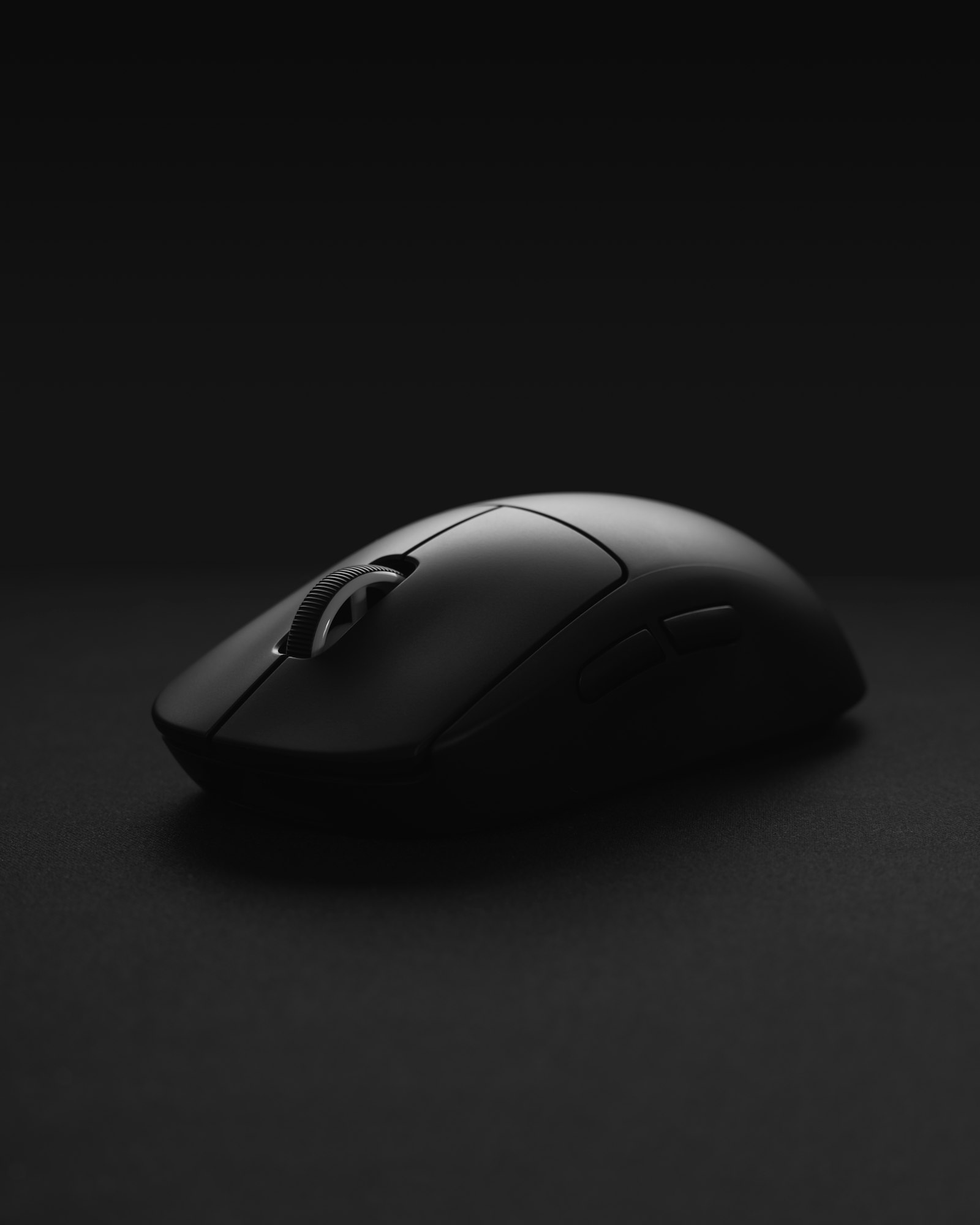
A cheap mouse and an expensive one both move a cursor and register clicks, so the gap between them rarely shows up on the box. Knowing how to choose a computer mouse comes down to a handful of specs that are easy to misread, plus a few physical traits that no spec sheet captures. Sorting out which is which can save you from paying for a number you will never notice or skipping the one detail that would have mattered.
DPI Is Sensitivity, Not Quality
The biggest number on most packaging is DPI, dots per inch. Logitech’s gaming mouse guide describes it as essentially the sensitivity setting for your mouse: a higher value moves the cursor farther for the same hand movement. That makes it a preference, not a score. Logitech notes that lower DPI settings are more common in tactical shooters, while higher settings suit faster-moving games.
The useful feature is not a huge maximum but adjustability. A mouse that lets you switch DPI on the fly lets you work at a comfortable setting for spreadsheets and bump it up for a large multi-monitor desktop, which pairs naturally with the screen setup we covered in our monitor buying guide.
Optical or Laser Sensor
Most modern mice use one of two sensor types. Logitech says laser sensors are more versatile and work on just about any surface, but are more susceptible to jitter and acceleration, making them slightly less accurate. Optical sensors, in its words, are preferred by competitive gamers because they are more accurate, with the drawback that they struggle on transparent, glossy, or low-reflectivity surfaces. Keep in mind that Logitech sells mice, so this is a manufacturer’s view rather than independent testing. The practical takeaway is simpler: if you use a glass desk, test the mouse on it or add a mouse pad.
Polling Rate: More Is Not Always Better
Polling rate is how often the mouse reports its position and button presses to your computer, measured in hertz. According to Logitech’s polling rate explainer, 100 to 250 Hz suits creative work and casual use, 500 Hz is great for serious gaming, and 1000 Hz is mostly for competitive play and is only noticeable on fast monitors. Above 1000 Hz, it says, the practical difference is minimal while power use rises. Its own conclusion is that for most users, 250 Hz or below is sufficient. On a wireless mouse, a higher rate also tends to shorten battery life, which is a real cost for a number you may not be able to feel.
Weight, Shape, and Grip Matter More Than Specs
Comfort depends on how your hand meets the mouse. Logitech outlines three common grips: palm, where your whole palm rests on the mouse; claw, where fingertips and the base of the palm make contact; and fingertip, where only your fingertips touch. A larger mouse usually suits a palm grip, and a smaller one tends to suit claw or fingertip, though hand size matters as much as grip.
Weight is the other trade-off. The same guide lists the G502 X Plus at 106 grams and the G PRO X Superlight 2 at about 63 grams, a large gap that you will feel over a long day. Lighter models reduce arm fatigue, while heavier ones can feel steadier for precise movements. If you can hold one in a store, do it before you commit.
Wired or Wireless
Wired mice are easy to connect and reliable, but the cable can drag. Wireless gives you freedom of movement at the price of batteries or charging. Logitech claims its wireless technology removes the latency worries of the past, and for office or home use the difference is generally small enough to ignore. If your mouse sits next to a laptop on a desk, convenience may matter more than anything else, and our laptop buying guide is a good companion read if you are upgrading both.
Buttons and Build
Extra programmable buttons help if you do video editing, run a spreadsheet-heavy job, or play games with many commands, and they are wasted if you never remap them. Logitech suggests looking for switches rated for at least 20 million clicks and a body that does not flex when gripped firmly. Pair a well-chosen mouse with a good mechanical keyboard and the desk setup starts to feel like one coherent tool.
FAQs
What DPI should I use for everyday work?
There is no single right answer because DPI is a sensitivity preference. Start in the middle range your mouse offers, then raise it if you find yourself lifting and repositioning the mouse often, or lower it if the cursor overshoots.
Is a more expensive mouse always more accurate?
No. Beyond a certain point, price buys weight reduction, build quality, wireless tech, and extra buttons rather than noticeably better tracking for ordinary tasks.
Is a higher polling rate worth it for office use?
Usually not. Logitech says 250 Hz or lower is enough for most users, and higher rates mostly matter on fast displays in competitive games while costing more battery on wireless models.
Will a gaming mouse work well for work?
Yes, and many people prefer one for the comfort and adjustable settings. Just choose the shape and weight that fit your hand and ignore the flashy extras if you do not need them.












Discussion about this post