

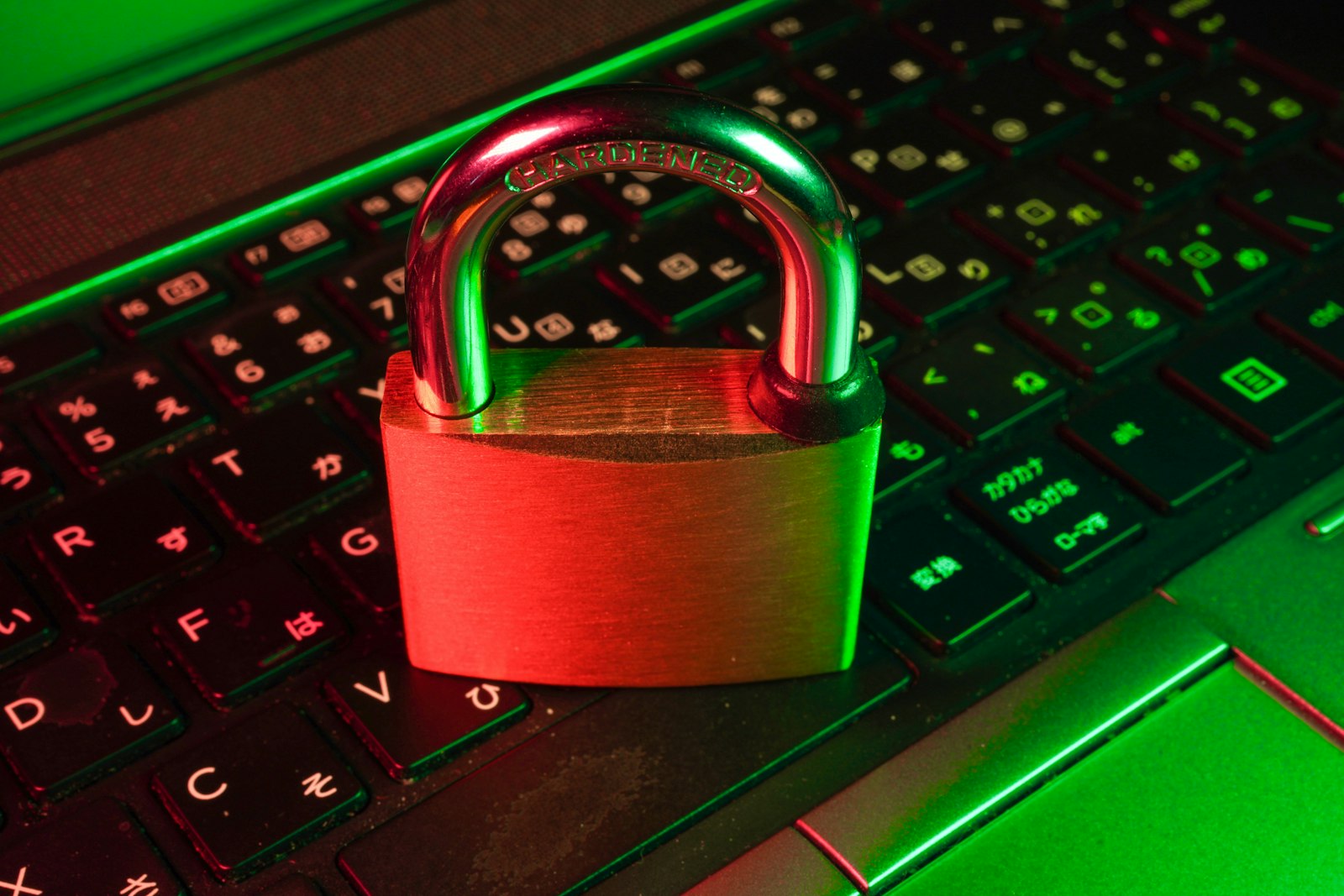
The padlock next to a web address is one of the most misunderstood symbols on the internet. Plenty of people read it as a stamp of approval, as if the site behind it had been inspected and found trustworthy. It was never meant to say that. HTTPS, the technology behind the padlock, protects the connection between you and a site, and it says very little about who is running that site or what they plan to do with your information.
What HTTPS Adds to a Web Address
HTTPS is the secure version of HTTP, the protocol browsers use to request web pages. As Cloudflare’s learning center explains, it uses TLS, formerly known as SSL, to encrypt data traveling between your browser and a website. Plain HTTP sends everything as readable text, so anyone positioned along the route, such as someone on the same café network, could read or alter it. With HTTPS, that traffic is scrambled in transit.
How the Encryption Gets Set Up
Two parties who have never met need to agree on a secret without anyone eavesdropping, which sounds impossible until you see the trick. TLS relies on asymmetric cryptography, meaning two linked keys. The site keeps a private key to itself and shares a public key with everyone. Data locked with the public key can be unlocked only with the private one.
Before any page content moves, your browser and the server run a short exchange called the TLS handshake to establish the secure connection. It happens in a fraction of a second, which is why you never notice it. HTTPS traffic travels over port 443, while ordinary HTTP uses port 80, though that is a detail you will rarely need to think about.
The Certificate Is the Site’s ID Card
Encryption alone is not enough. If your browser encrypted everything perfectly but sent it to an impostor, the secrecy would be worthless. That is the job of the certificate. According to Cloudflare, the certificate carries the site’s public key to your browser at the start of the session and verifies that a provider is who it claims to be. Certificates are issued by trusted outside organizations, and your browser keeps a list of the ones it accepts. If a certificate is expired, mismatched to the address, or issued by someone your browser does not trust, you will see a full-page warning rather than the page.
What the Padlock Does Not Promise
Here is the part that trips people up. Google’s own Chrome help page on site security describes the secure state as meaning that information you send or get through the site is private between you and the site. That is a statement about the connection. Chrome’s guidance even adds that you should always be careful when sharing sensitive or personal information, even when connected securely.
In practice, a scam page can use HTTPS just as easily as a bank can, because a certificate proves a connection is private, not that the owner is honest. A fake login page at a look-alike address can show a perfectly valid padlock. The habit that protects you is reading the address itself, character by character, before typing a password. Our guide to spotting phishing scams covers what to look for.
What HTTPS Hides and What It Leaves Visible
Even a correctly secured connection reveals some things. Your device still has to look up the site’s address, a step we walk through in our explainer on what DNS is and how domain names become websites, and your internet provider can generally see which site you connected to, though not the pages or form contents inside the encrypted connection. A VPN changes who can see that outer layer rather than adding protection for the site itself, which is spelled out in how VPNs work.
A Quick Checklist for Everyday Browsing
Treat HTTPS as the minimum, not the verdict. When a browser flags a site as not secure, avoid entering anything sensitive there. Check the address bar for lookalike spellings before logging in. Be cautious with warning pages that urge you to click through, because they usually exist for a good reason. And remember that a secure connection to a bad site is still a bad site.
FAQs
Is HTTPS the same as SSL?
Not exactly. SSL is the older name for the encryption layer, and TLS is the modern replacement. People still say “SSL certificate” out of habit, but current HTTPS connections use TLS.
Does the padlock mean a website is safe?
No. It means your connection to the site is encrypted and the site presented a valid certificate. It says nothing about whether the owner is trustworthy, so scam sites can show it too.
Can anyone see what I do on an HTTPS site?
Others on the network cannot read the pages or form entries inside the encrypted connection, but they can often tell which site you connected to. The site itself, of course, still sees what you submit.
What should I do if my browser shows a certificate warning?
Stop and do not proceed, especially on a page asking for a password or payment details. Warnings usually mean an expired certificate, a mismatched address, or a connection someone may be tampering with, so go back and check the address.












Discussion about this post